Start with the exact shape when you can
A shorthand such as “21:9” may not be the exact ratio of the pixel dimensions you enter. For example, 3,440:1,440 simplifies to 43:18, while 21:9 simplifies to 7:3. Those are different ratios. This is arithmetic, not a claim that all screens described as ultrawide share one shape.
If you expect square pixels, using the exact ratio of the pixel dimensions keeps the two descriptions consistent. The resolution presets in our calculators set the physical ratio to match the selected pixel dimensions. If a manufacturer provides actual viewable width and height, use their ratio and check the remaining inputs.
Do not silently substitute 21:9 for 43:18 and expect the geometry to remain identical. A small difference in shape changes both calculated height and area.
Compare two hypothetical active pictures
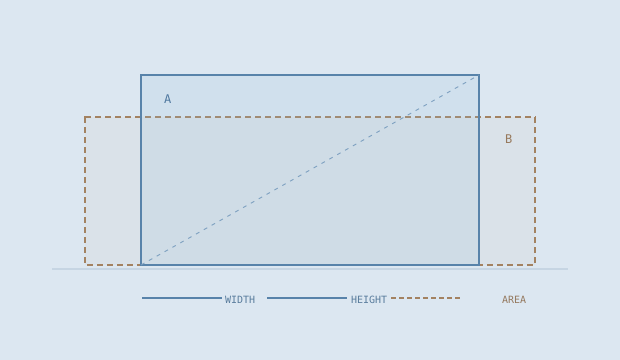
Screen A is 27 inches at 16:9, with 2,560 × 1,440 pixels. Screen B is 34 inches at 43:18, with 3,440 × 1,440 pixels. The calculator uses these as editable examples; they are not measured products.
Screen A is about 23.53 inches wide and 13.24 inches high. Screen B is about 31.36 inches wide and 13.13 inches high. The much larger diagonal in B mainly adds horizontal span in this example. It does not add a comparable amount of height.
The exact percentages are calculated from the unrounded dimensions. A drawing of the active rectangles uses one common scale, so their visible shapes can be compared without assuming their outer housings are the same thickness.
Read the percentage baseline
The comparison reports the change from A to B. For width, that is (B width ÷ A width − 1) × 100. Area uses the same expression with area values. A positive result means B is larger for that measurement; a negative result means it is smaller.
Reversing the order changes the denominator, so the percentage is not generally the same number with a minus sign. A move from 20 to 25 units is +25%, while a move from 25 to 20 is −20%. Keep the reference screen clear when describing an upgrade.
If the aspect ratio stays the same, increasing the diagonal by 10% increases width and height by 10%, but area by 21%: 1.1 × 1.1 = 1.21.
Make the next check about the real product
Active rectangles are useful for comparing shapes. To place a real monitor, collect the complete chassis width and its support hardware dimensions. Curvature, bezels, stand bases, arm positions and the way you angle the screens can change the physical setup.
The comparison diagram does not model curvature or a three-dimensional view. Side-by-side mode places flat active rectangles on a common baseline. Overlay mode centers them on that baseline so their relative width and height are easy to inspect.
After checking the shape, compare the product specifications that matter to your own use. This tool does not rate panel quality or predict the performance of a particular application.