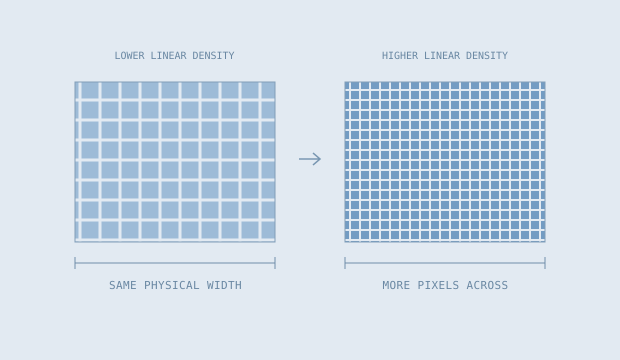
Count pixels along a physical length
Pixels per inch describes linear density. If an active picture is 23.53 inches wide and has 2,560 pixels across, its horizontal density is approximately 108.8 PPI. For a square-pixel image with matching physical and pixel aspect ratios, the vertical density agrees.
The common shortcut is √(pixel width² + pixel height²) ÷ diagonal inches. That works as a single density description when the pixels are square and the physical shape matches the entered resolution. Our tool also calculates density independently along each physical axis so a mismatch is visible.
For a 27 inch, 16:9 geometric screen, 2,560 × 1,440 pixels gives about 108.8 PPI. Keeping that same physical screen and entering 3,840 × 2,160 gives about 163.2 PPI. The second example has more pixels along each inch; the rectangle itself has not become wider.
Software scaling is a separate layer
A higher physical density does not guarantee that a particular app will display more usable workspace at the same reading size. Operating systems and applications can scale interface elements. A button expressed in logical units may occupy more physical device pixels on a higher-density display.
Microsoft’s documentation distinguishes physical pixels from device-independent pixels and explains how Windows applications deal with display scale factors. Those documents support the distinction, not a universal choice of scaling percentage for your setup.
This site does not predict the exact size of an app window, the appearance of a particular font or your preferred reading distance. It reports physical geometry and the density implied by your inputs. When evaluating an actual setup, check the operating system and the applications you use.
Make mismatched ratios visible
Suppose a physical shape is entered as 16:9 but the resolution is entered as 1,920 × 1,200, which is 16:10. Dividing the horizontal and vertical counts by their respective physical lengths produces different densities. Reporting a single square-pixel PPI would hide that inconsistency.
Our calculator flags physical and pixel aspect ratios that differ by more than 0.1%. When they differ, the result shows horizontal and vertical densities separately. The physical aspect fields continue to control the drawing and dimensions. The resolution fields continue to control the pixel counts.
It does not prove a product has unusual pixels. It may simply mean that a rounded label or an incorrect resolution was entered.
Use density as a comparison, not a verdict
PPI does not measure brightness, contrast, refresh behavior, color performance or text-rendering quality. It also does not establish a universal boundary between comfortable and uncomfortable viewing. Those questions need different evidence and, in some cases, direct experience.
When comparing two screens, record the physical diagonal, the exact active aspect ratio and the native pixel dimensions. Check whether both inputs describe square pixels before interpreting the density percentage. A larger screen at the same resolution has a lower PPI, even though it contains the same total number of pixels.
The most useful result is a clear statement of what changed: width, height, active area, pixel counts or density. None of those measurements alone is a complete product recommendation.
References & further reading
These primary references explain the terms used here. The geometry, examples and illustrations are our own explanatory work.